Inpatient management is the admit–transfer–discharge (ADT) side of the clinic: it keeps track of who is staying overnight, which bed they occupy, and what their stay is costing. It's used by front-desk and clinical staff at facilities that keep patients in beds — a small hospital, a maternity unit, a day-observation area, or an ICU.
Every admission is anchored to the patient's clinical visit, which acts as the running tab for the stay. Bed fees, nursing, and daily consultation charges accrue onto that visit automatically, so the bill is always current and the final total is ready the moment you discharge.
Before you start
- Inpatient is an optional module. If you don't see Inpatient in the menu, an administrator needs to enable the Inpatient feature for your clinic, and your role needs inpatient permissions (wards, beds, and admissions).
- Set up your wards and beds first. A ward is a room class (general, private, maternity, observation, ICU) and carries the default daily bed fee for that class; an individual bed can override that rate. Without beds, there's nowhere to admit a patient.
Step 1 — View bed availability
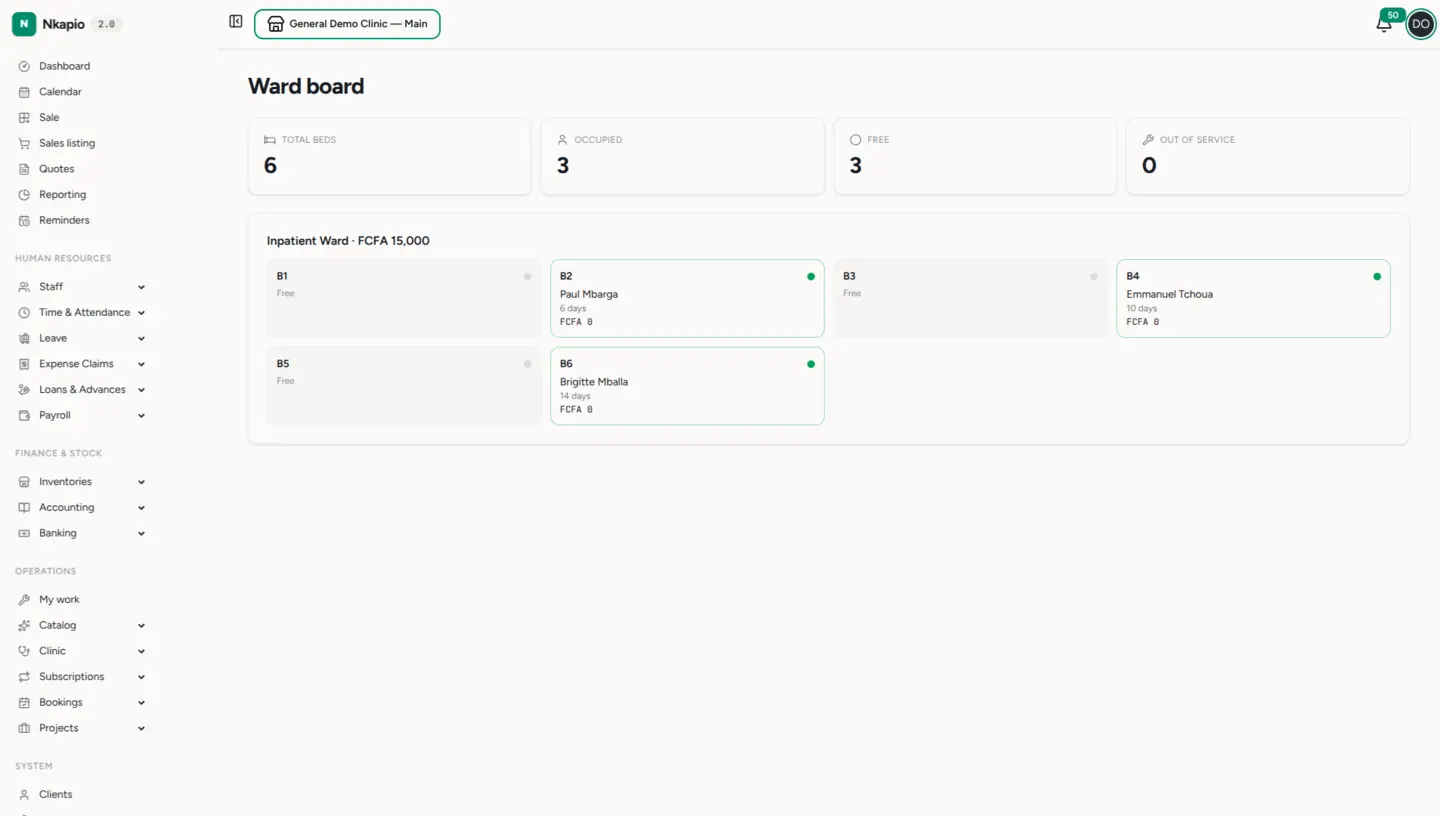
Open Inpatient → Ward board. The board shows live occupancy across the facility, with summary tiles for total, occupied, free, and out-of-service beds. Each bed is a card with a status dot:
- Green — occupied. The card shows the patient, days on the stay, and the running balance, and links straight to the admission.
- Grey — free and ready to receive a patient.
- Amber — out of service (cleaning, maintenance, repair). The reason is shown on the card.
Patients who have been admitted but don't yet have a bed appear in an Awaiting bed list beneath the wards. The board updates itself in real time as beds are assigned, transferred, or freed — no need to refresh.
Step 2 — Admit a patient
Admissions start from the patient's clinical visit, not from a separate form. Open the visit for the patient you're admitting and choose Admit patient. This creates an admission linked to that visit and opens the admission page.
A new admission has no bed yet — it shows as Bed pending and appears under Awaiting bed on the ward board. This is intentional: you can register the admission immediately and assign the bed once one is ready.
Step 3 — Assign a bed and manage the stay
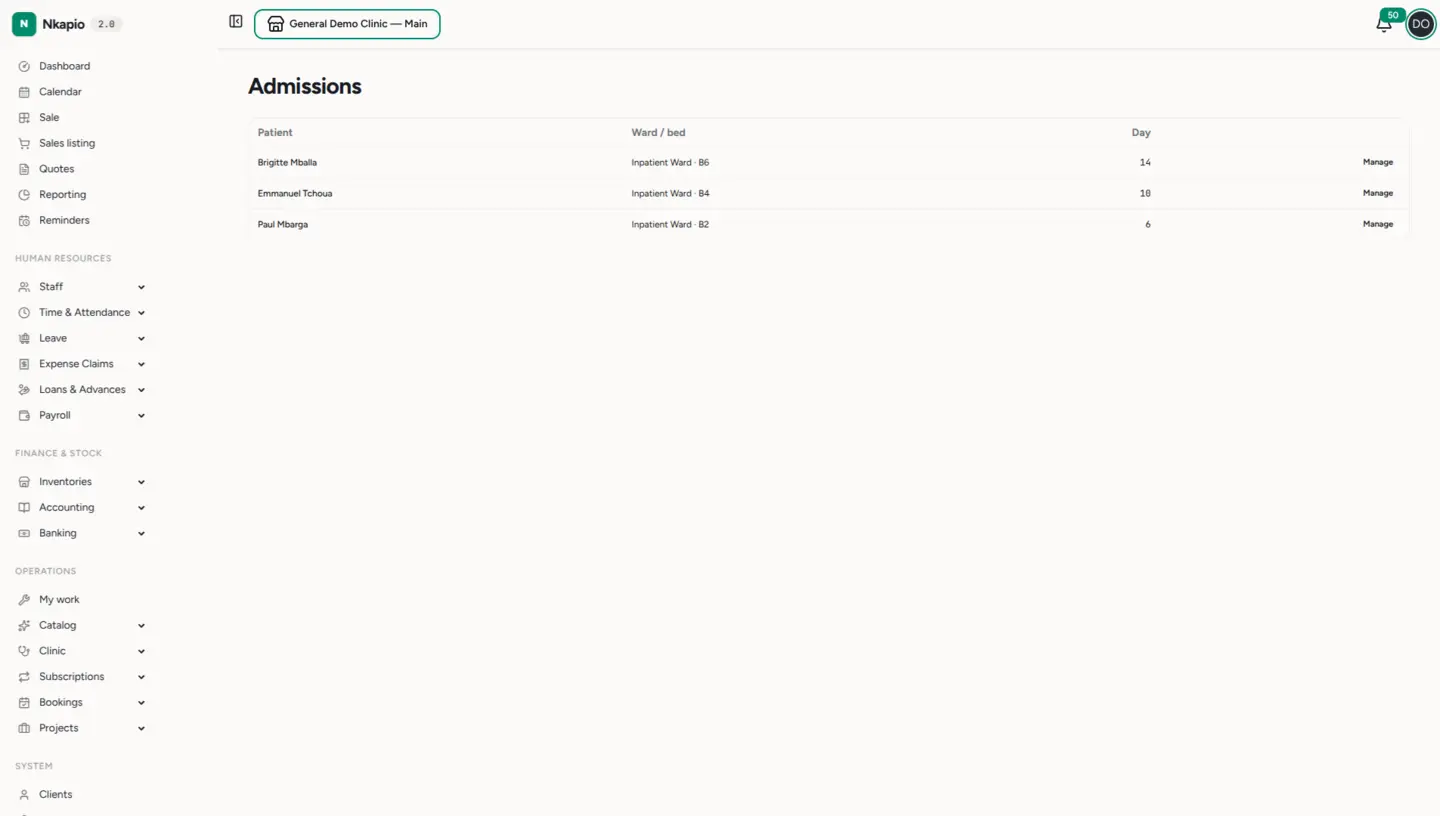
The Admissions list shows every active stay — patient, ward and bed, and the day count — with a Manage link into each one. Open an admission to:
- Assign a bed — pick from the free beds (out-of-service and already-occupied beds are excluded). Once assigned, the bed shows as occupied on the board.
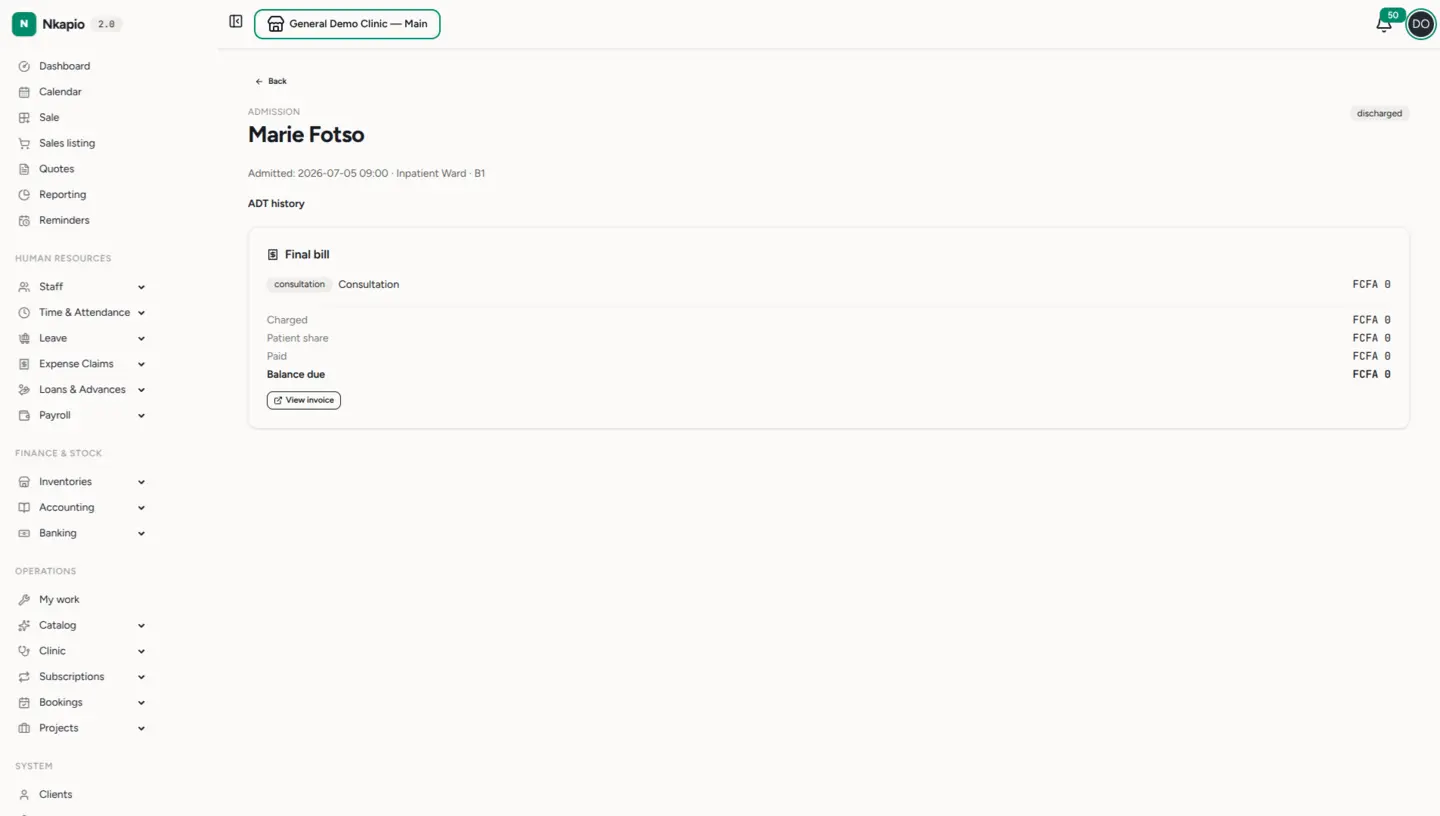
- Follow the ADT history — an append-only timeline of every admit, bed assignment, transfer, and discharge, with who recorded it and when.
- Watch the running bill — daily charges as they accrue, coverage/payer share, patient share, amount paid, and balance due, with a link to the invoice.
Day-to-day clinical documentation for the stay — notes, vital signs, prescriptions, and orders — is recorded on the patient's linked visit and record, not on the admission itself. See the guides under What's next for those workflows.
Step 4 — Transfer to another bed
To move a patient — say from observation to a general ward, or between beds — open the admission and choose Transfer, then select the destination bed. The transfer frees the old bed, occupies the new one, and records a transfer event on the ADT timeline with the from/to beds and the time. From the next accrual onward, the bed fee follows the patient's current bed.
Step 5 — Discharge a patient
When the stay ends, open the admission and choose Discharge. You can add an optional discharge note. Confirming will:
- Mark the admission discharged and free the bed on the board.
- Accrue the daily charges through the discharge day and finalize the bill, which then shows as the Final bill on the admission page.
If an admission was entered in error, it can be cancelled instead of discharged — this closes it and frees the bed without treating it as a completed stay.
How the daily bill works
While a patient is admitted, a daily job posts three kinds of charge onto the stay's visit tab:
- Bed — the ward's daily rate, or the bed's override if one is set.
- Nursing — the clinic's daily nursing fee, if configured in settings.
- Daily consultation — starting the day after admission (the admission day's consultation is already on the tab from starting the visit).
Accrual is idempotent — each charge is stamped per day, so re-runs and back-fills never double-charge. A day when the patient has no bed yet posts no bed charge for that day. Coverage and payer splits are applied by the shared billing path, so the patient-share figure on the admission is what's actually owed.
Tips & common questions
- Statuses. An admission is admitted, discharged, or cancelled. Only admitted stays appear in the active admissions list and hold a bed.
- Can two patients share a bed? No. Occupancy is derived from active admissions, and the system blocks admitting, assigning, or transferring into a bed that is already occupied or out of service — you'll see a "the bed may be occupied or out of service" message. Only one active admission can hold a bed at a time.
- A bed needs cleaning or repair. Mark it out of service (with a reason) so it stops appearing as available. Bring it back when it's ready.
- When do daily charges post? Automatically each day for every active admission; discharging tops the bill up through the discharge day. You don't post them by hand.
- Where are vitals and notes? On the patient's clinical visit and record, which the admission links to — not on the admission page.