Item custody keeps a clear record of anything your business holds on a client's behalf — a phone or laptop left for repair, a vehicle in for service, luggage or valuables checked in at reception. Every item is logged when it arrives, tracked while it's in your care, and signed for when it goes back, so there's never a doubt about who handed over what, in what condition, and when.
It's built for any team that takes a customer's property into their hands: repair shops, garages, clinics, spas, hotels, and workshops. Two pieces work together. A belonging is the item itself — it lives on the client's file and stays the same record across visits, so a returning vehicle or phone is always the same belonging. A handover is one intake-to-return episode for that belonging: it carries the photos, signatures, condition notes, current location, and status for that single stay.
Step 1 — Open item custody
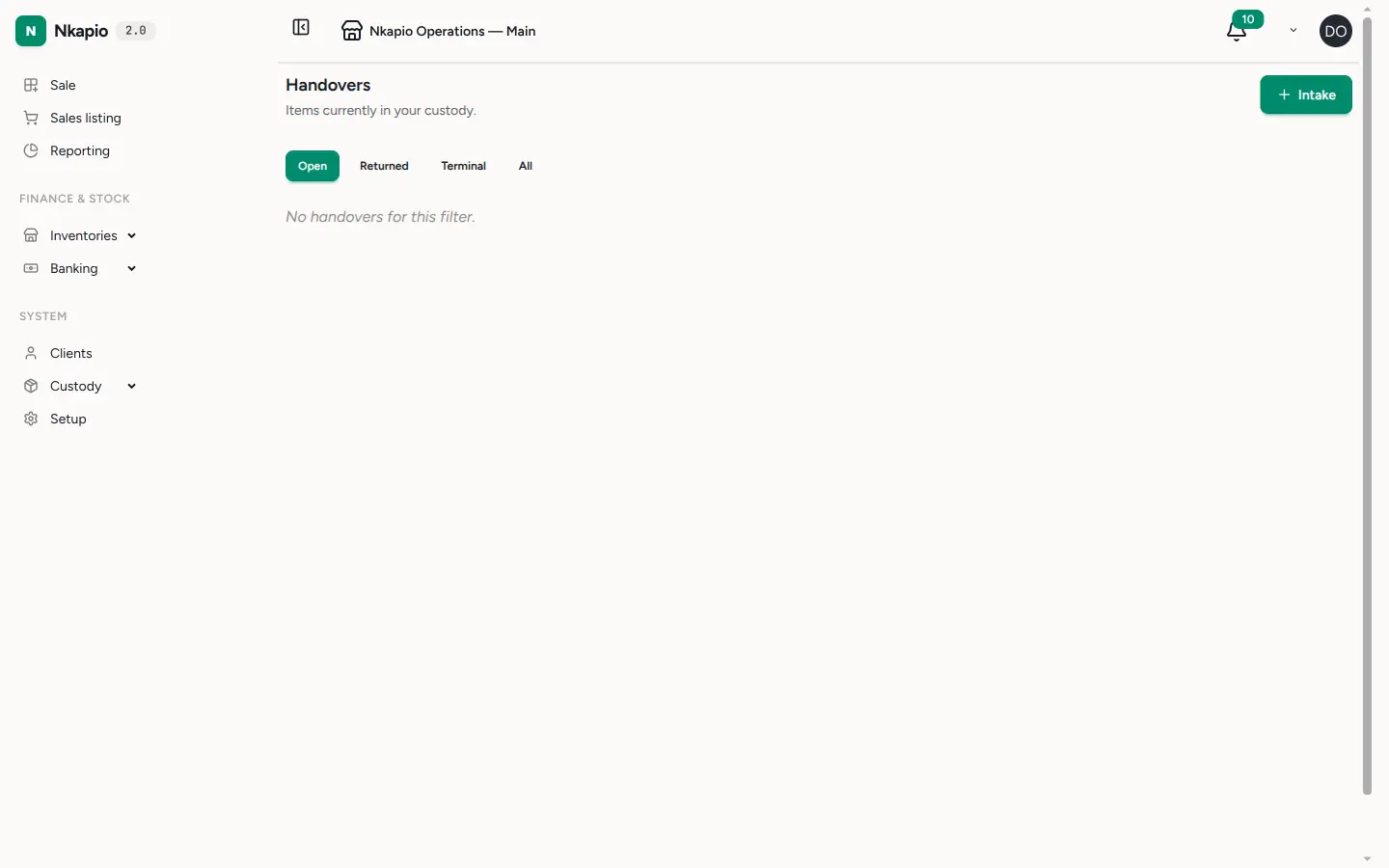
In the sidebar, open Custody and choose Handovers. The list shows everything currently in your care, and you can switch the filter between Open, Returned, Terminal, and All to see items at any stage. Each row shows its holder and status so you can tell at a glance what's still outstanding.
Step 2 — Record an intake
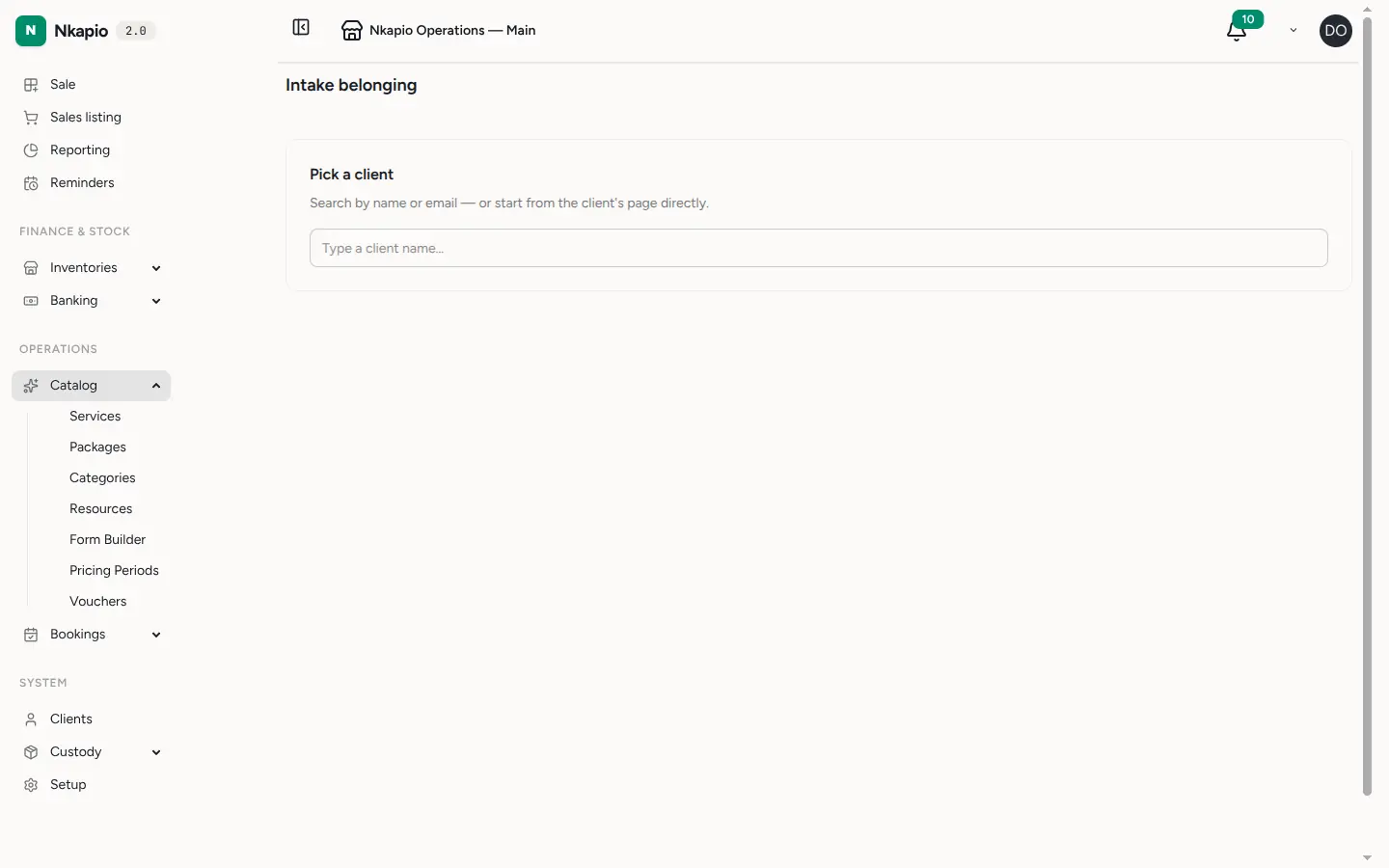
Click Intake, then search for and select the client. Pick one of their existing belongings or create a new one — a belonging has a name, a kind (vehicle, electronics, luggage, jewelry, document, or other), and an optional client-supplied serial or reference. Capture photos of its condition and add any notes, then record where the item will sit: either a storage location or the staff member holding it. To finish, both the client and a staff member sign on-screen, locking in an agreed record of the item's condition at drop-off.
Kind-specific details — a plate and mileage for a vehicle, an IMEI for a phone — are captured on a linked form at intake, so you collect exactly the fields that matter for that type of item.
Step 3 — Scan an item back in
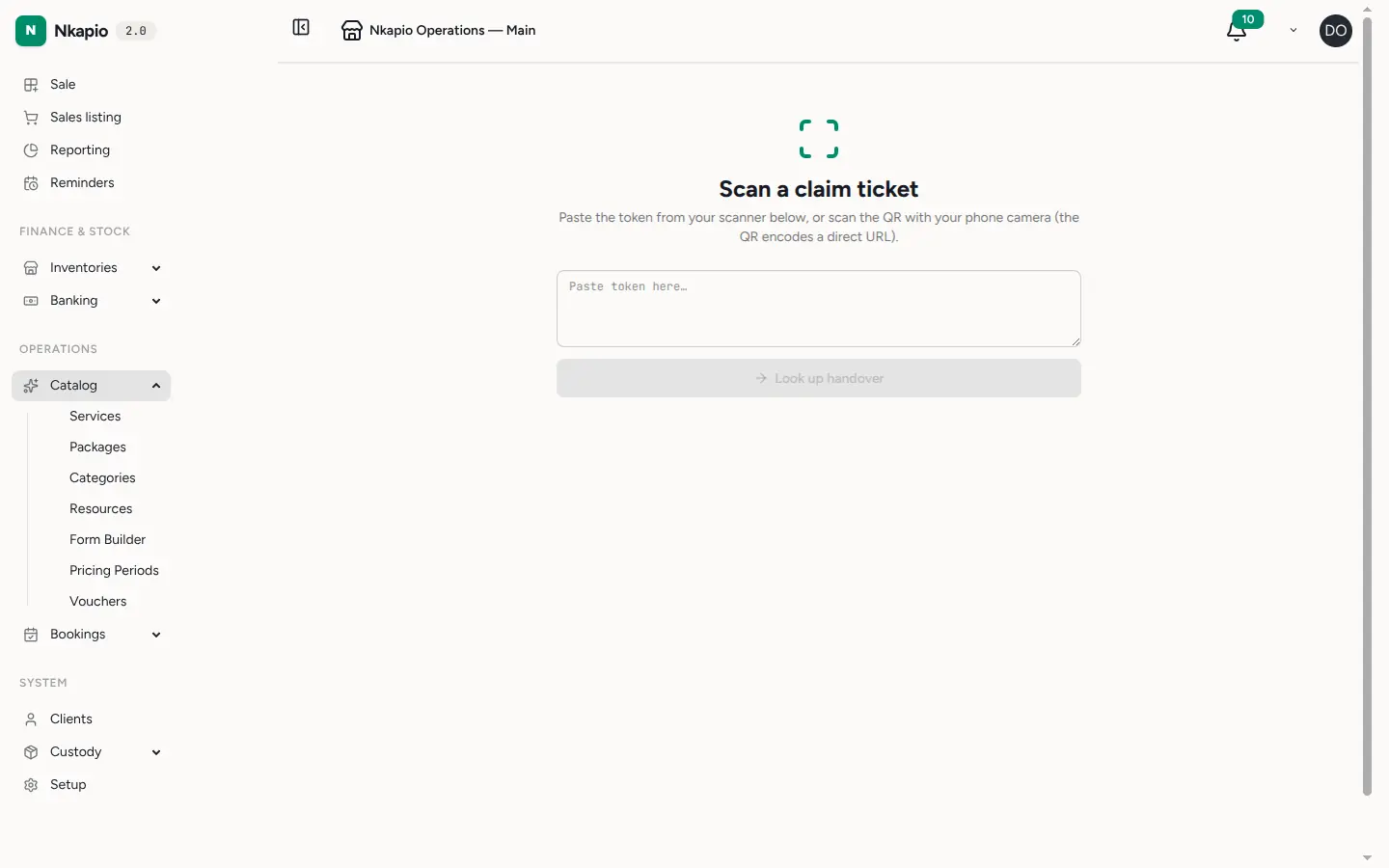
Every handover can print a claim ticket carrying a QR code. When the client returns, scan the QR with a phone camera to jump straight to the right handover, or open the Scan ticket page and paste the token from a handheld scanner. From the handover, record the return — return photos, condition notes, and a fresh client and staff signature — and it moves to Returned. If something goes wrong, you can instead mark the item Lost or Damaged with a reason.
Custody history
Every handover keeps its own timeline. Receiving the item, moving it between a storage location and a staff member, adding a photo or note, and the final return or loss are all recorded as events you can't edit or delete. That append-only history is your evidence trail if a client ever queries what happened while the item was with you.
Before you start
- Enable the feature. Item custody only appears when it's switched on for your business. If you don't see Custody in the sidebar, ask an administrator to enable it.
- Check permissions. You need custody permissions to view handovers and record intakes; without them the section stays hidden.
- Every item belongs to a client. An intake always starts from a client, so add the client to your directory first if they're new. Belongings are also managed directly from the client's file.
- One holder at a time. An item sits in either a storage location or a staff member's hands — not both — so its whereabouts are always unambiguous.
Tips and FAQ
- Can I link custody to a booking? Yes — an intake can be tied to a booking, so a repair or service job and the item it concerns stay connected.
- What are the statuses? Received, In service, Awaiting return, Returned, Lost, and Damaged. The list's Open filter shows everything not yet closed out.
- Do claim tickets expire? A claim ticket stays valid for about 90 days, so a QR left on a fridge or with the item still works when the client comes back.
- Why capture signatures? The intake and return signatures, together with the photos, protect both sides — the client agrees to the item's condition on the way in and on the way out.