Some appointments need more than a staff member. A treatment needs a room, a scan needs a machine, a home visit needs a vehicle. Nkapio calls these physical things resources, and it checks their availability the same way it checks staff availability — so two appointments can never quietly claim the same room at the same time.
There are two related ideas on this screen, and it helps to keep them apart:
- A resource is bookable capacity — a room, chair, machine or vehicle that a service reserves while it runs. Resources feed the calendar.
- An asset is a custody record — a specific piece of equipment handed to an employee, tracked by serial number and the dates it was given out and returned. Assets live under Staff → Assets.
Resources are usually set up once by whoever manages your catalogue or inventory; assets are logged by whoever hands equipment to your team. You need the matching permission for each — if you don't see the menu, ask an administrator to grant it.
Step 1 — Open Resources
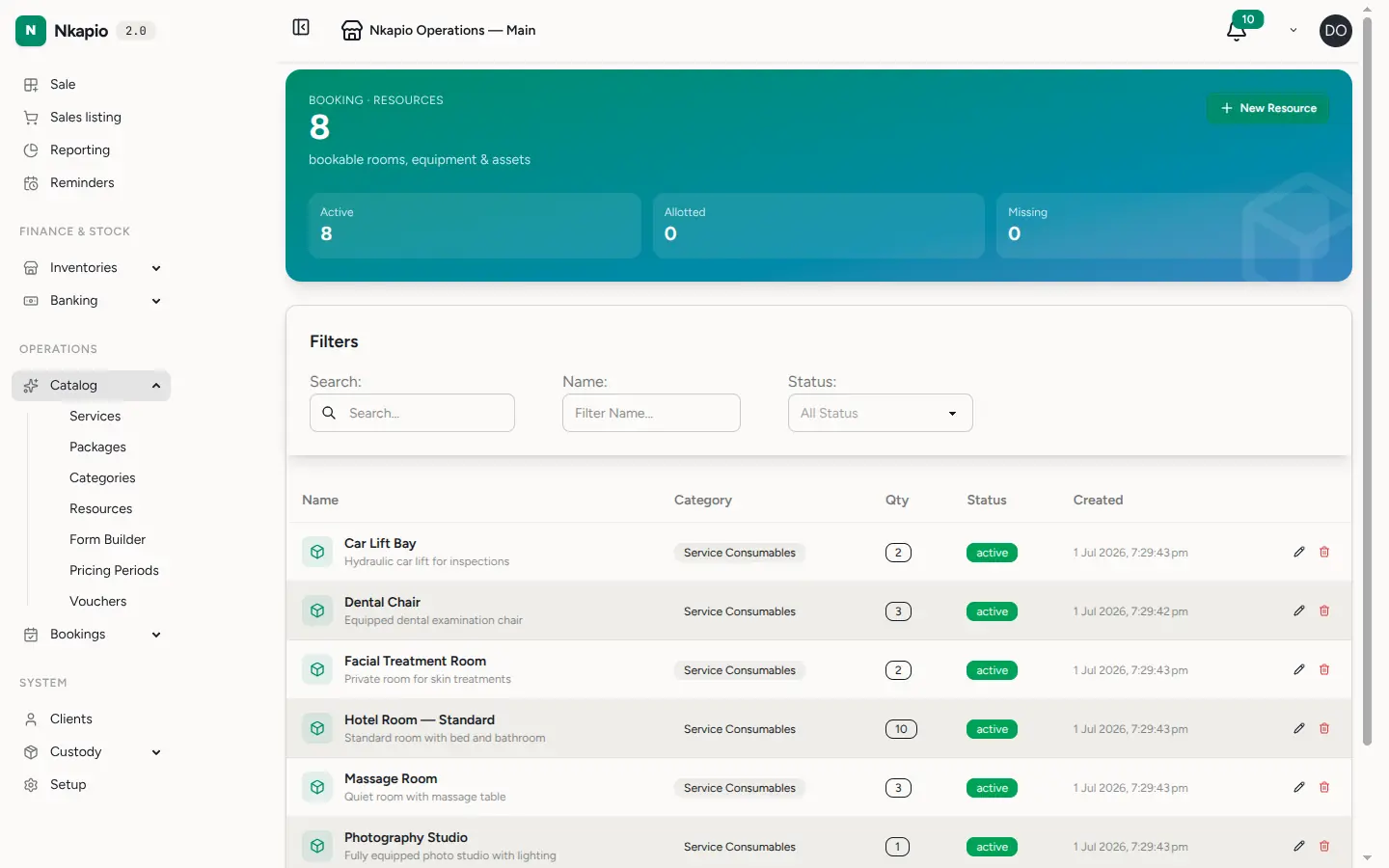
In the sidebar, open Resources (under Catalog). The list shows every resource with its category, quantity and current status. The banner at the top summarises how many are active, allotted or missing, so you can spot anything that needs attention at a glance.
Step 2 — Add a resource
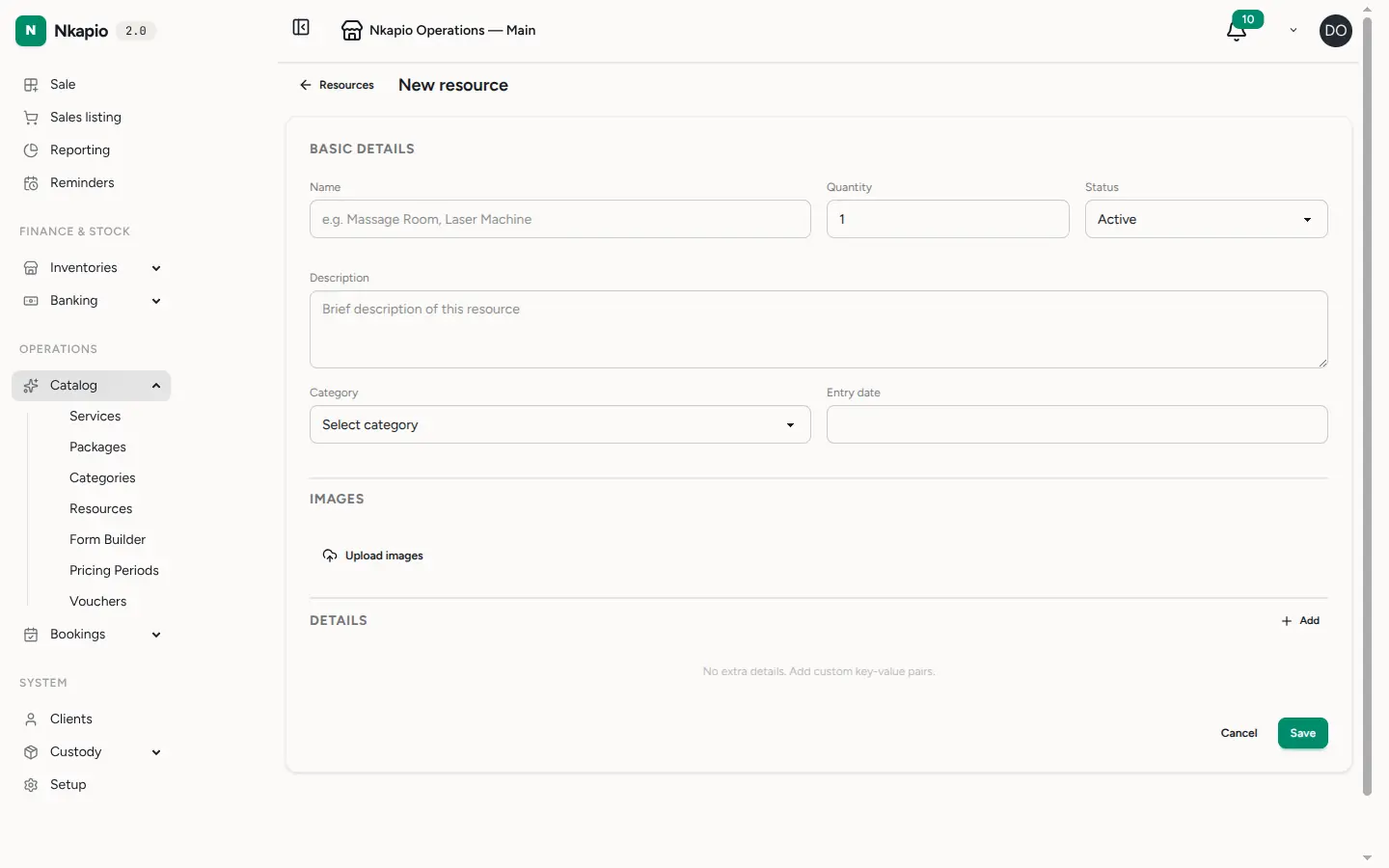
Click New Resource and give it a clear name — "Massage Room 1", "Laser Machine", "Delivery Van". Then set the fields that shape how it behaves:
- Quantity — how many interchangeable units you have. A single treatment room is
1; a pool of five identical chairs is5. The calendar lets the resource be booked up to this many times in the same slot before it counts as full. - Status — Active (bookable), Allotted (in use or assigned elsewhere), Missing (flagged for attention) or Inactive (retired, not bookable).
- Category is required, and helps you group and filter resources.
- Description, an entry date, up to four images, and custom details (label/value pairs such as Serial number → SN-12345) are all optional but make the register easier to search later.
Step 3 — See where a resource is used
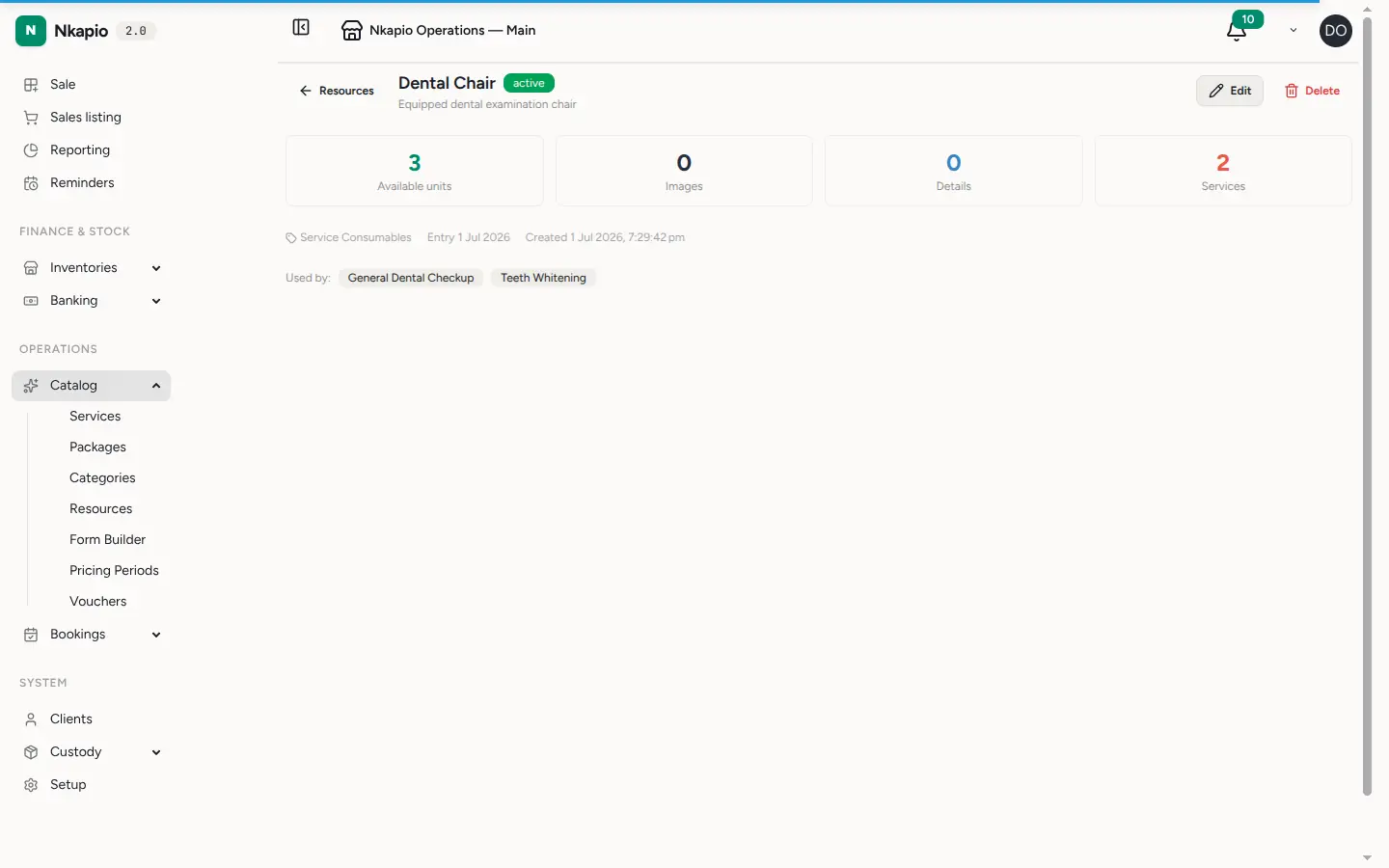
Open a resource to see its detail page: available units, images, custom details, and — under Used by — the services that reserve it. Linking a resource to a service is done from the service itself: edit the service, turn on the setting that says it requires a resource, and pick the resources it needs. Once a service is linked, the calendar reserves those resources automatically every time that service is booked.
How the calendar uses resources
When someone books a service that requires a resource, Nkapio checks — before confirming — that a free unit exists for the whole appointment window. If the resource is already fully booked for that time, the booking is refused and the unavailable resource is named, so the front desk knows exactly what's blocking it.
Two details are worth knowing:
- Quantity is the ceiling. A resource with a quantity of 3 accepts up to three overlapping bookings; the fourth is turned away until one frees up.
- Conflicts are counted per store. If you run more than one location, a booking at one store doesn't consume the resource's units at another.
Tracking equipment as assets
An asset is how you record that a specific piece of equipment is in someone's hands. Go to Staff → Assets, add an asset, and choose the employee, the resource it corresponds to, its serial number, and the given and return dates. This is your answer to "who has the tablet?" or "when is the laptop due back?" — separate from, but built on top of, the resource register.
Before you start
- You need the resource permission to add or edit resources, and resources must be enabled for your plan.
- A category is required on every resource — set your categories up first if you haven't.
- Resources are attached to services from the service editor, not from the resource page. The resource page only shows you where a resource is already used.
- If a resource shows as Missing, it stays in the register but flags an alert on the list so nothing slips through.
Tips
- Set Quantity to reflect real interchangeable units — it's what stops the calendar from double-booking a room while still letting a shared pool take several appointments at once.
- Use details for anything you'll want to look up later: serial numbers, warranty dates, model numbers.
- Mark a resource Inactive rather than deleting it when it's temporarily out of service — you keep its booking history.
FAQ
Can two bookings use the same room at once? Only up to the resource's quantity. A room with quantity 1 can hold a single appointment per slot; the next overlapping booking is refused.
Why isn't my resource offered when I book a service? The service has to require it. Edit the service, turn on the resource requirement, and attach the resource there.
What's the difference between a resource and an asset? A resource is bookable capacity that the calendar schedules. An asset records that a particular piece of equipment has been handed to a specific employee, with dates and a serial number.