The client profile is the single place where everything you know about a person comes together — what they booked, what they paid, what they still owe, and the details you want to remember next time. Front-desk staff open it before a visit, managers open it to check a balance, and service providers open it to catch allergies or preferences before they start. Nothing has to be looked up in two places.
Step 1 — Open the profile
From the Clients list, click a client. The profile opens with their name, phone, email and address at the top, alongside a row of figures that tells you where the relationship stands at a glance:
- Total payments — everything this client has ever paid you.
- Total due — what they still owe across all invoices.
- Invoices and Unpaid invoices — how many bills exist, and how many are still open.
- Store credit, when returnable-packaging or deposits are in use.
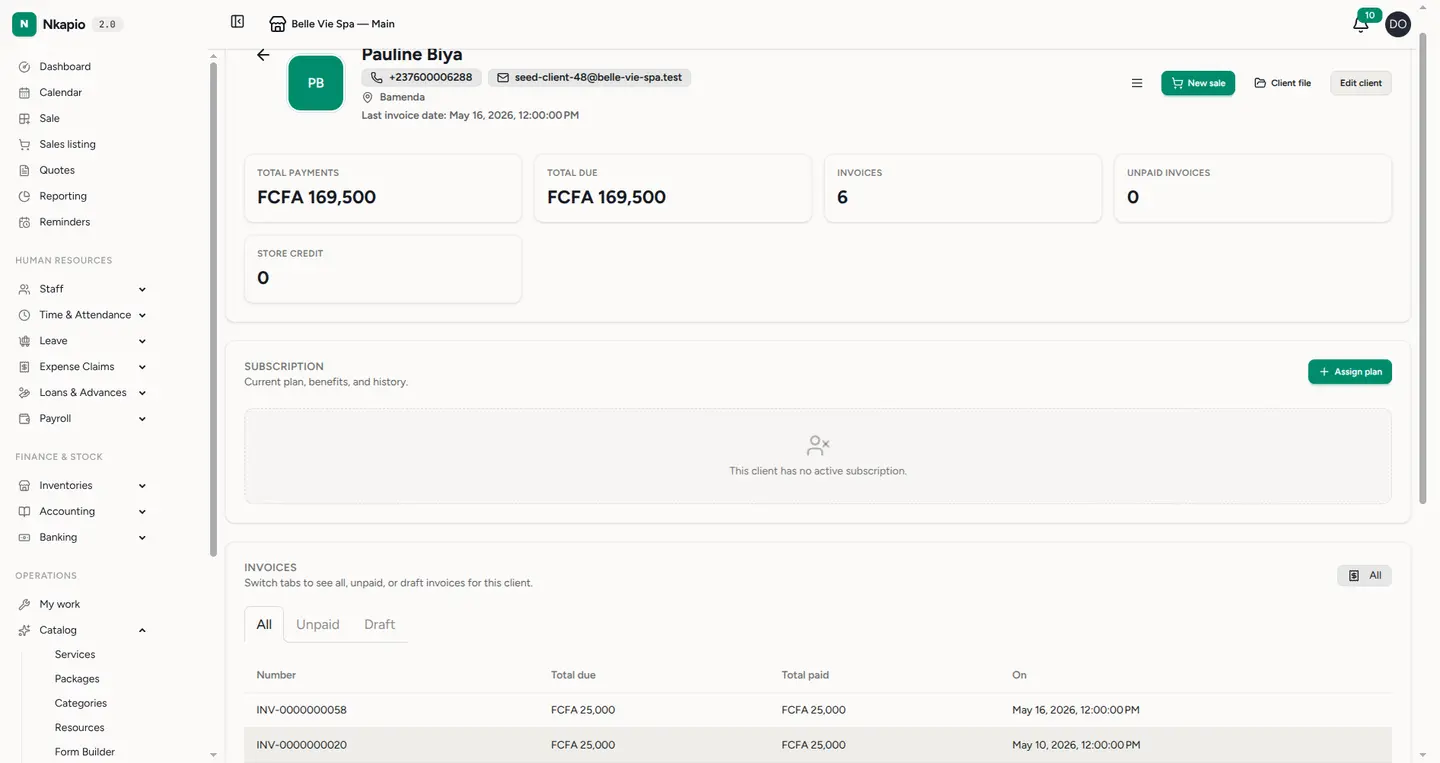
Below the figures, the same page gathers the client's subscriptions, their invoices (switch the tabs to see all, unpaid, or draft), any resources they have borrowed or own, and any belongings they have handed over for service — a vehicle, a device, a suitcase. The action buttons let you start a new sale, open the full client file, or edit their contact details without leaving the page.
Step 2 — Browse the file
Click Client file to open the client's complete record. It is organised into tabs so each kind of information stays easy to find:
- Profile — the persistent facts you have collected about the client, grouped by category. Some fields hold a single current value; others accumulate over time.
- Safety — active contraindications (allergies, conditions, cautions) and consent records, each marked valid, expired or revoked.
- Forms — every form this client has filled, with the option to compare two submissions of the same form side by side to see what changed.
- Photos — images captured through form uploads, shown as a gallery.
- Changes — a timeline of every edit to the client's stored data, showing the old value, the new value and when it changed.
- Audit log — who viewed, exported or deleted this client's data, and when.
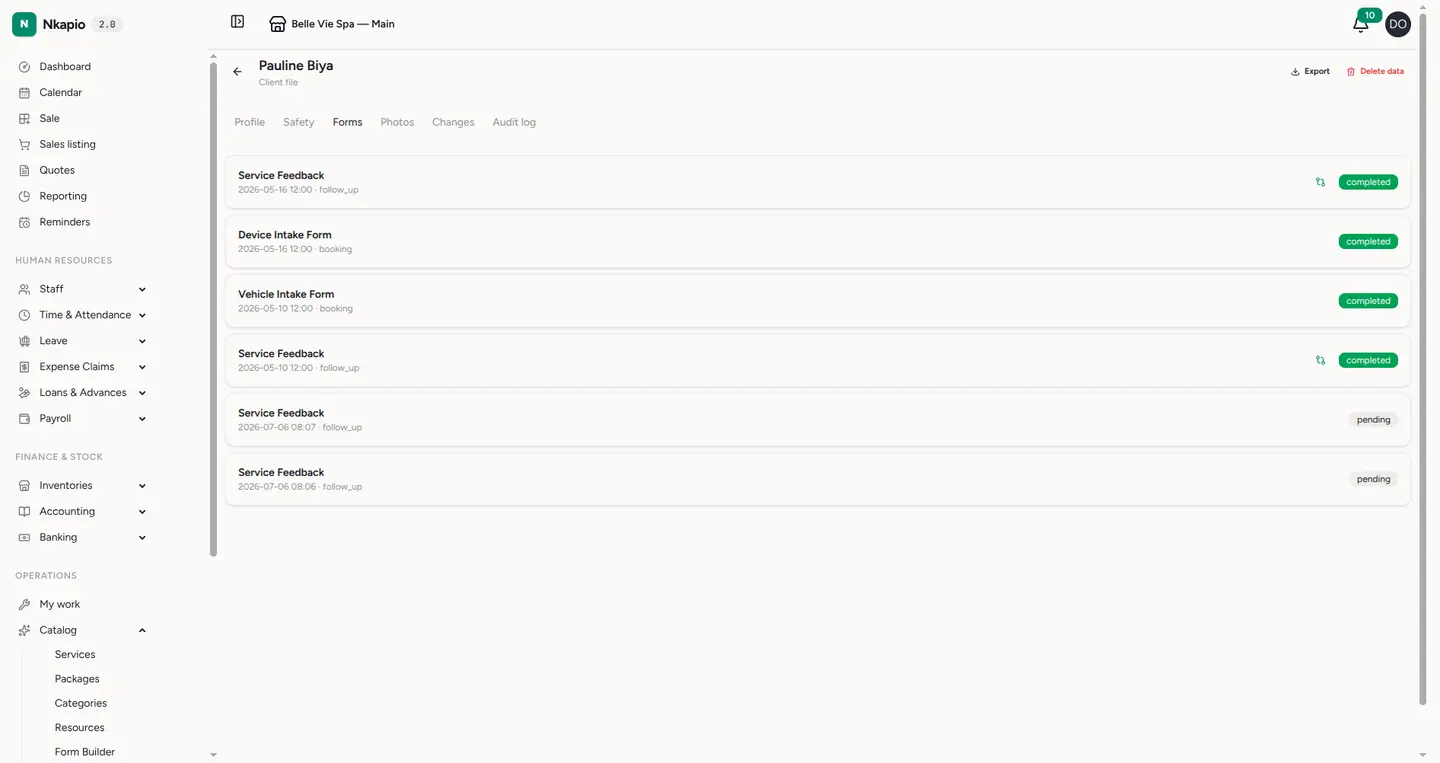
Step 3 — Keep what matters on the record
The file is where the small things live between visits. Record allergies and cautions under Safety so they surface before service; capture preferences and recurring details on the Profile tab so anyone serving the client sees them. This information stays with the client across all your stores, so the next person to help them starts from the same picture.
Files & photos
Documents and photos reach the file through the forms a client fills — there is no separate upload button on this page. Each file is stored securely and only turned into a viewable link the moment you open it, so links are short-lived and cannot be shared or guessed after the fact.
Managing the record
- Export downloads a copy of everything held about the client as a single file — useful for a data request or a handover.
- Delete data permanently removes the client's stored data points, history, form submissions and consent records. It cannot be undone, so it is limited to people with the right permission.
- Some sections — resources, belongings, deleting data — appear only when your role allows them, so different team members may see slightly different pages.
Tip: duplicates happen. Use the Merge client action on the profile to combine two records into one and keep both histories.
Frequently asked
Why can't I see the Resources or Belongings section? Those sections are permission-gated. If your role doesn't include them, they stay hidden — ask an owner or manager to adjust your role.
Where are a patient's diagnoses, prescriptions and vitals? Clinical records are kept separately from the commercial client profile. See Patient records for the clinical file.
A client's balance looks wrong — where does it come from? The figures at the top are calculated from the client's invoices and payments. Open the Invoices tab to see the bills behind the numbers.