Running out without warning is the most expensive way to learn your stock levels. Nkapio does two things to prevent that: it surfaces items that have run down so you can act before a customer is turned away, and it writes an audit trail so every change in quantity can be explained after the fact.
This page is for anyone who owns stock — a store manager watching shelves, an owner reconciling a month, or a front-desk user checking why a count looks wrong. Together, alerts tell you what needs attention now and the log tells you how you got here.
Before you start
- You need inventory permission to open the log, the serials list and the stock reports. If a menu is missing, ask an owner to grant it.
- The log is populated automatically as you work — sales, purchases, adjustments and transfers all write to it on their own. There is nothing to turn on.
Step 1 — Watch the dashboard
The Out of stock tile on the dashboard counts the variants that have hit zero (or gone negative) in the selected store. It is the fastest read on what you can no longer sell. Click through for the list of exactly which products and variants are affected, so you know what to reorder first.
For a forward-looking view, the Stock burn & forecast report projects, per variant, the average daily consumption, the days left until you reach the reorder point, and the expected stock-out date. Variants without a reorder point configured are flagged so they don't slip through — set one where it matters and the forecast fills in.
Step 2 — Read the inventory log
In Inventories, open the inventory log. Every change in quantity lands here automatically, newest first, so you never have to reconstruct history by hand. Each entry records:
- Date & time — exactly when the movement happened.
- Action — why the quantity changed: a sale (invoice created), an invoice edit or void, a purchase received, a stock adjustment, a transfer between stores, or consumption by a booking.
- Variant — which product variant moved.
- Quantity — how much, and in which direction.
Every movement is also stamped with the user who caused it, and entries are append-only — nothing in the log can be edited or deleted after the fact. That is what makes it trustworthy as an audit trail: the record you read today is the record as it happened.
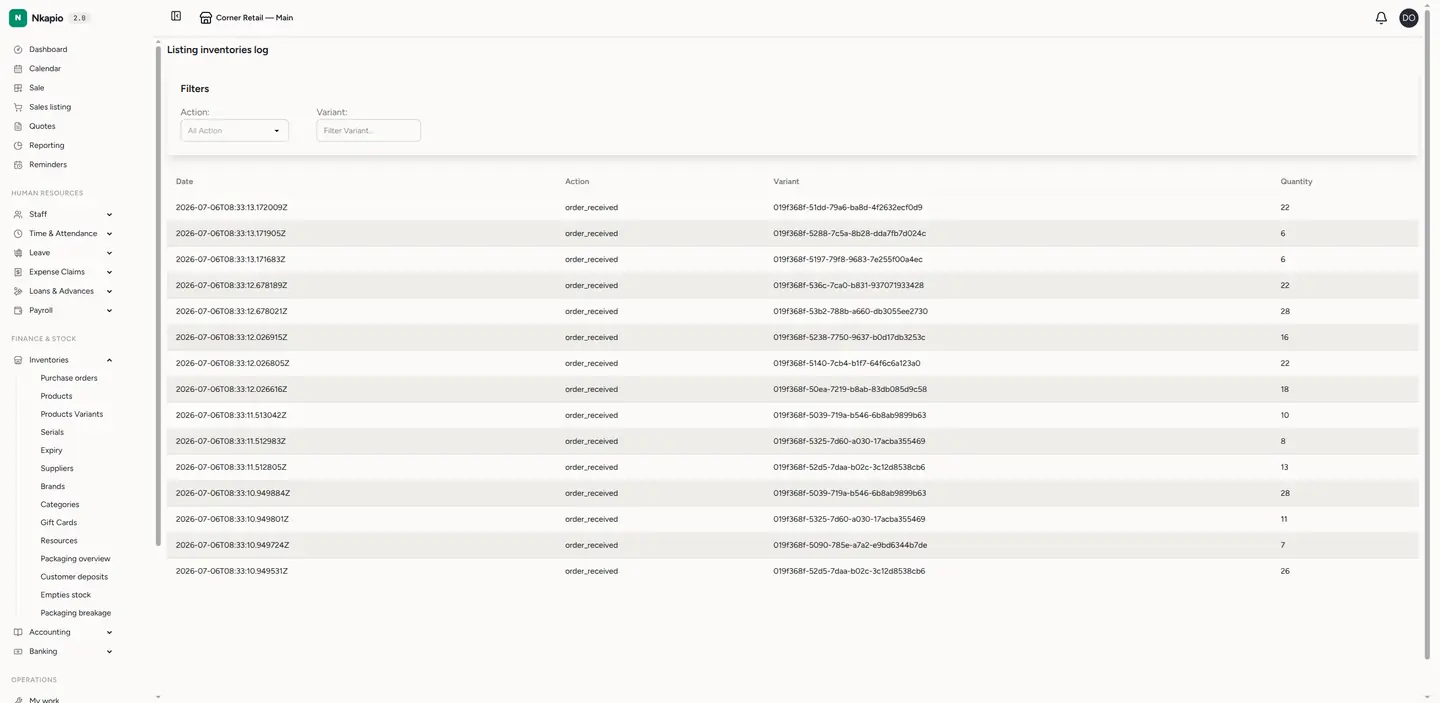
Use the filters to narrow the trail by action or by variant when you are chasing a specific movement.
Step 3 — Track serialized items
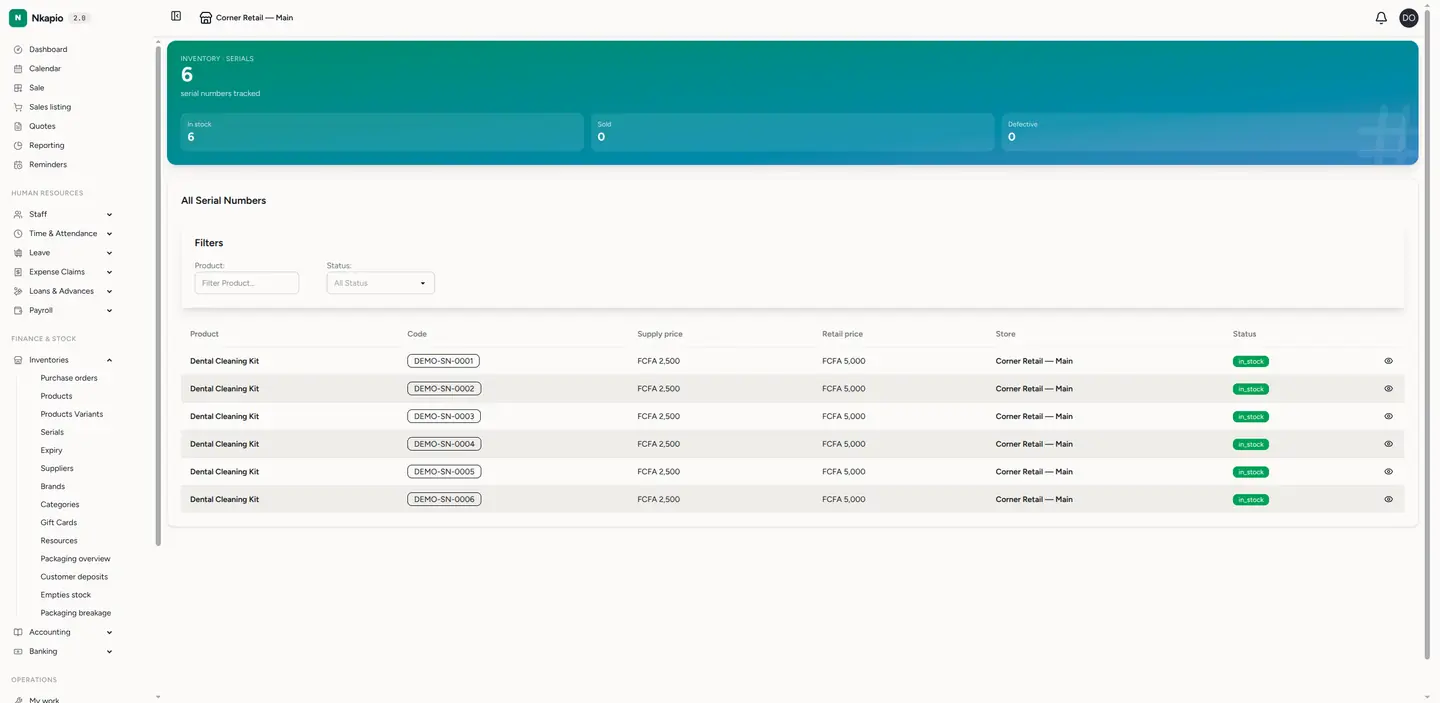
For items you follow one by one — devices, equipment, anything with its own serial number — Serials follows each individual unit rather than a running count. The header tiles summarise how many units are tracked, in stock, sold or marked defective, and the list shows each unit's product, code, store and current status from intake through to sale. Open any serial to see its full history.
Tips & FAQ
- Investigating a discrepancy? Filter the log by the variant in question, then read down the movements — a sale, an adjustment or a transfer will almost always account for the gap.
- Why doesn't the log show a change I expected? Only movements that actually changed a quantity are recorded. A draft that was never confirmed, or an item with no tracked stock, leaves no entry.
- Can I correct a wrong log entry? No — the log is immutable by design. To fix a count, make a stock adjustment; the correction itself is recorded as a new movement, preserving the full history.
- The forecast says a variant is "unconfigured". That variant has no reorder point set, so Nkapio can't project when to reorder it. Configure one to bring it into the forecast.