Leave management is the full time-off cycle: define the kinds of leave you offer, let staff apply, approve or reject each request, and track what everyone has left. Everything lives under Human Resources → Leave.
Before you start
- Create your leave types first, and set a default entitled days on each — requests need a type, and that figure is what balances are generated from.
- Generate balances for the year before staff apply. A request with no matching balance for its year is refused with "no leave balance found".
- Approving needs permission. The Approve / Reject buttons only show for users whose role grants leave approval; requesters can always file, submit and cancel their own.
Leave types
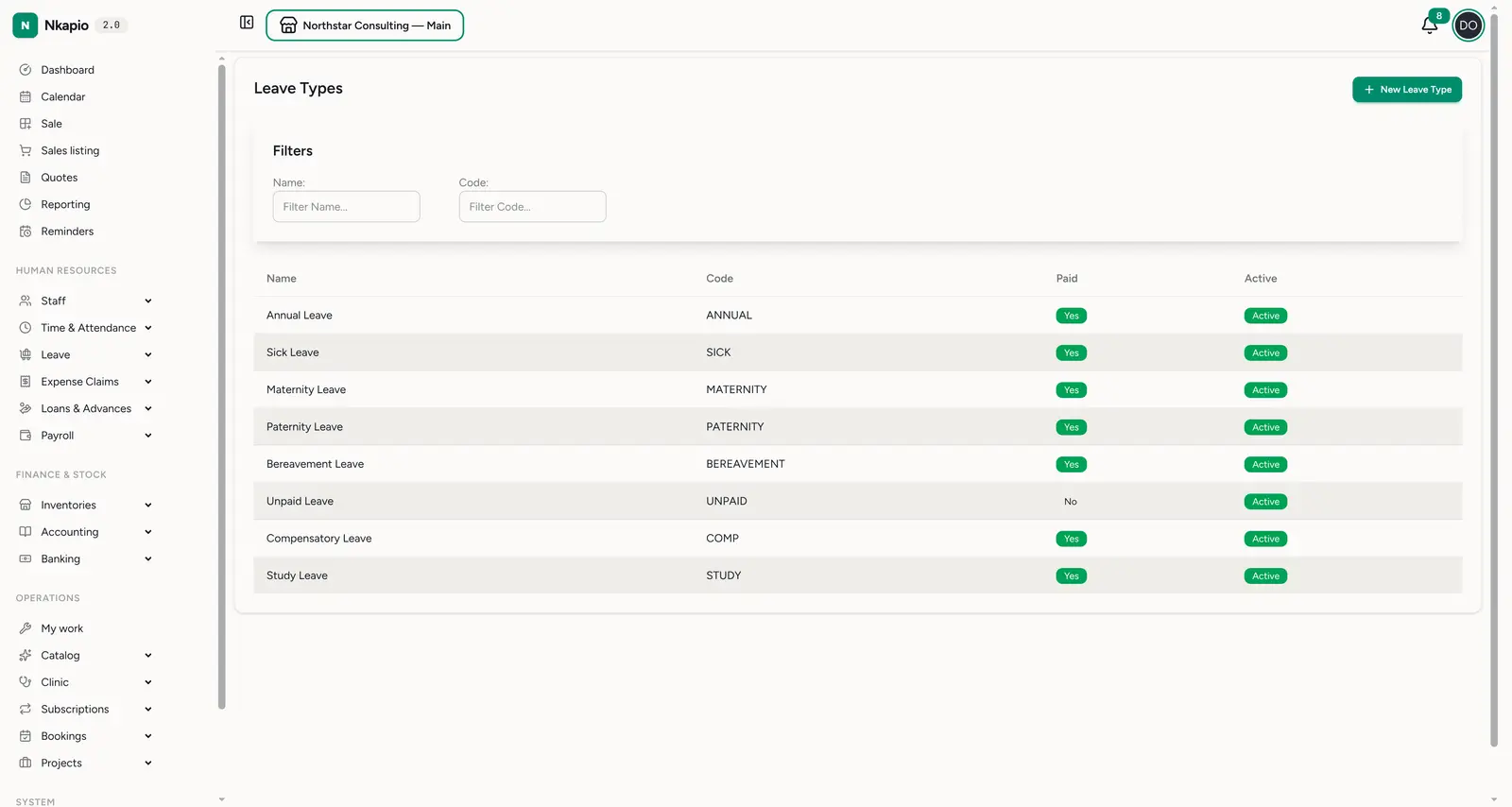
Leave → Types (/staff/leave_types) defines the categories of leave you
offer. Each type has a name, a short code and a color, plus a set of
rules: whether it's paid, whether it requires approval or an
attachment, a max days per request, a minimum days' notice, the
default entitled days granted each year, and whether unused days carry
forward (up to a cap). The default entitled days is what Generate Balances
grants, so set it on each type before generating. A typical setup includes
Annual, Sick, Maternity, Paternity, Bereavement, Unpaid, Compensatory and Study
leave — add or deactivate types with New Leave Type. Only active types
appear when staff file a request or when balances are generated.
Leave requests
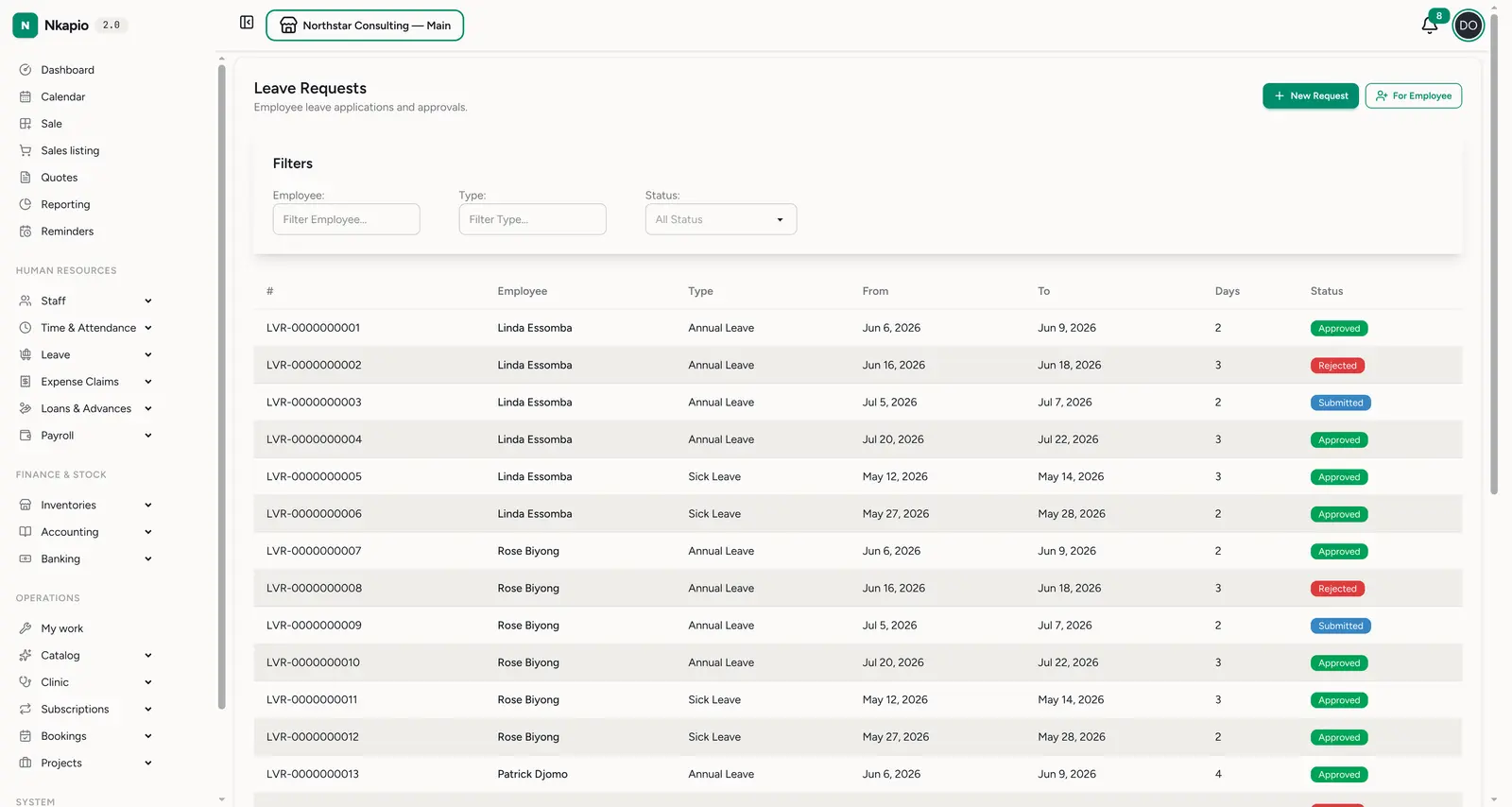
Leave → Requests (/staff/leave_requests) is the queue of applications. Each
row shows the employee, leave type, the from / to dates, the number of days
and a status. Filter by employee, type or status.
Staff file for themselves with New Request; a manager uses For Employee to file on someone's behalf. A request moves through a short lifecycle:
- Draft — a self-filed request starts here. The requester can still edit or cancel it, then clicks Submit to send it for approval. (A request filed For Employee is submitted straight away.)
- Submitted / Pending approval — waiting on a decision. Whoever holds approval permission opens the request and clicks Approve or Reject (with a reason); either can carry notes.
- Approved / Rejected / Cancelled — the final outcome. The requester can Cancel a request any time before it's decided.
The day count comes from the employee's work schedule — only working days are charged (weekends and other non-working days are skipped, defaulting to Monday–Friday if no schedule is set). Tick half day on the start or end date to charge half a day at that end.
Leave balances
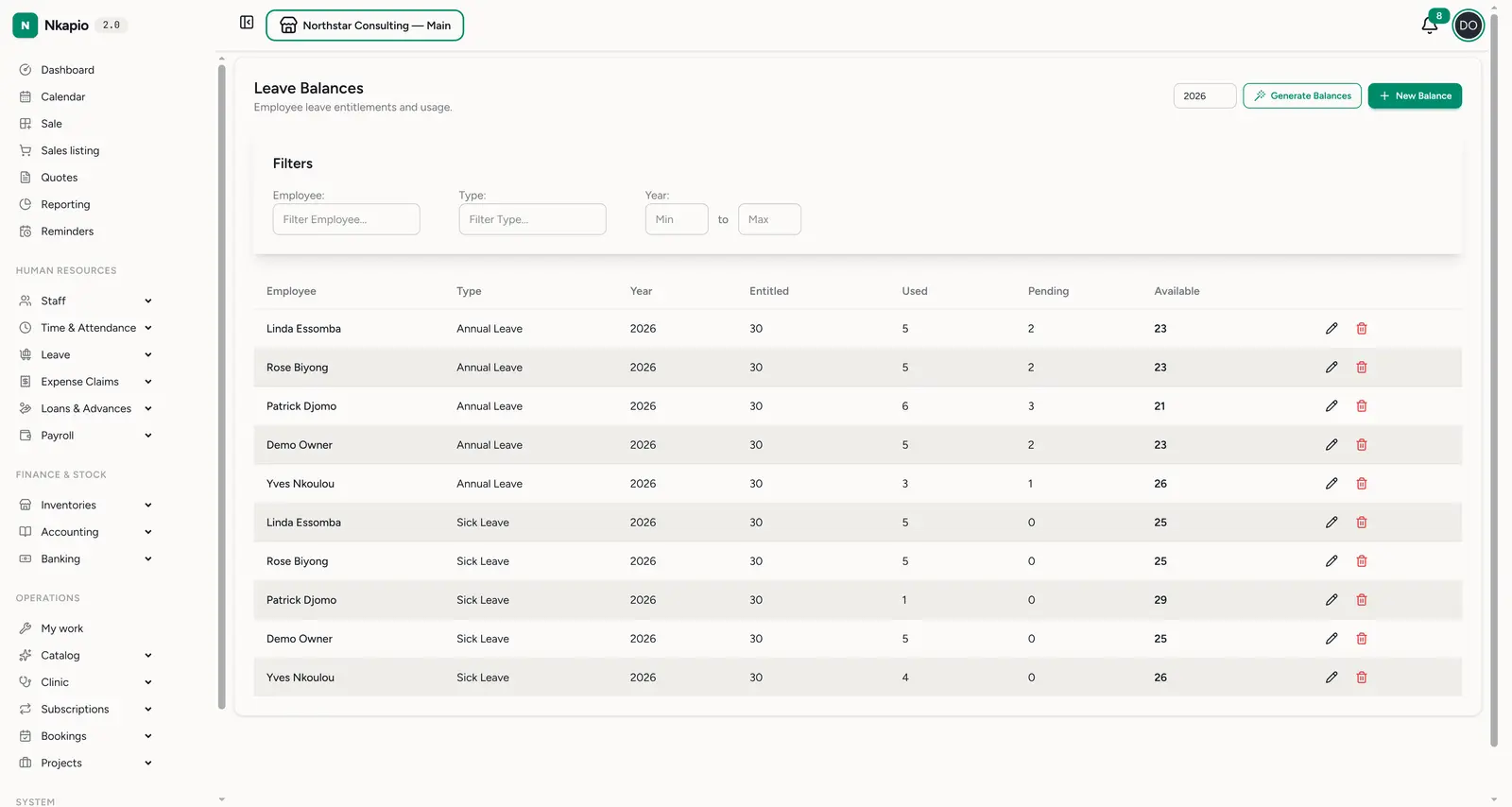
Leave → Balances (/staff/leave_balances) tracks each employee's entitlement
per type per year: entitled, used, pending (awaiting approval) and
available. Available is the entitled and carried-forward days, plus any manual
adjustment, minus what's used and pending. Balances update automatically: when a
request is submitted its days move into pending; on approval they
shift from pending to used; a rejection or cancellation frees them again.
Set the year at the top and use Generate Balances to seed a whole year's entitlements in one go — it creates one balance per active employee × active leave type from each type's default entitled days, rolling forward last year's unused balance where the type allows carry-forward (capped at its limit). It skips anyone who already has a balance, so it's safe to re-run. Use New Balance for a one-off, or edit a balance to record a manual adjustment.
Holidays
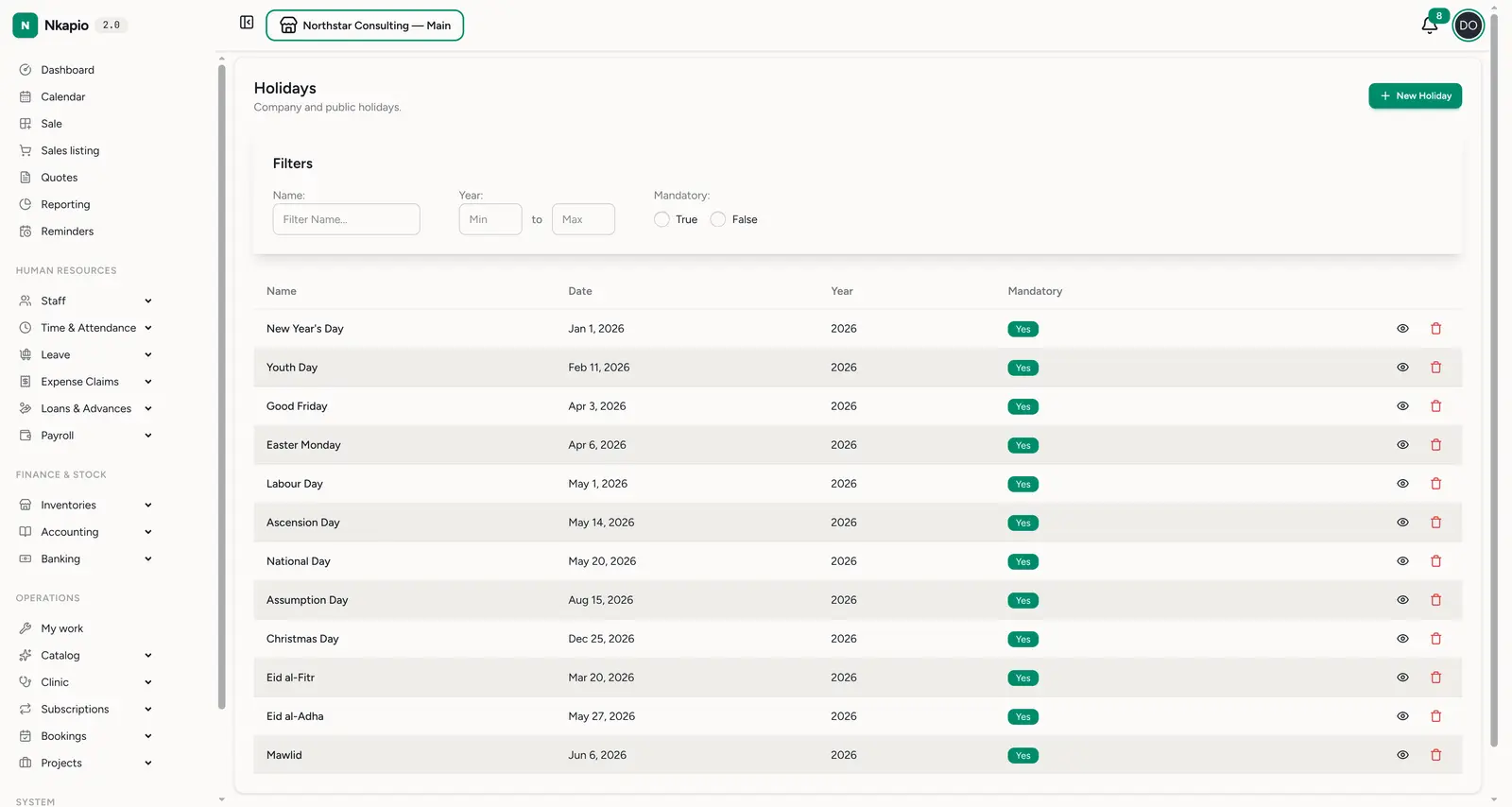
Leave → Holidays (/staff/holidays) is your company and public-holiday
calendar — name, date, year, and whether it's mandatory. It's a shared
reference of the days your business is closed. Cameroon public holidays come
pre-seeded; add company-specific days with New Holiday.
Tips
- Set up types and balances before go-live — requests need a type, and balances make approvals meaningful.
- Regenerate balances each year — one Generate Balances run rolls entitlements forward for everyone.
- Submitting reserves the days — available balance drops the moment a request is submitted (into pending), not only when it's approved.
- One request per period — a submission that overlaps another submitted, pending or approved request for the same employee is blocked.
- Watch the pending column — a high pending balance means requests are waiting on a manager.