When a client rates a service they booked, their star rating and comment land on the Reviews screen. From here you moderate that feedback: read it, reply, and decide what appears publicly. Each review is tied to the booking, the service, and the staff member who delivered it, so you can see exactly what's landing well and what needs attention. Ratings also roll up into the public rating shown on your storefront service pages, so reviews do double duty — private insight for you, social proof for new clients.
Open it under Bookings → Reviews (/contract/reviews).
Where reviews come from
You don't create reviews — clients do. There are two moments a client can leave one, and both are automatic:
- On the booking status page — once a booking is marked completed, the client's status page shows a short "How was your experience?" card with a 1–5 star selector, an optional comment, and a checkbox to allow the review to appear publicly. A rating is required; the comment is optional.
- By email — about 24 hours after a booking completes, Nkapio emails the client a review request (unless they've already left one). Owners and the assigned staff also see an in-app prompt in their notification feed.
Only one review per booking and service is kept, so a client can't rate the same visit twice, and the follow-up email won't nag someone who already replied.
Read and filter reviews
Each row shows the date, the service, the staff member, the star rating, the client's comment, its status, and whether you've replied. Use the filters at the top to narrow by service, by rating (e.g. only low ratings, to find unhappy clients fast), or by status.
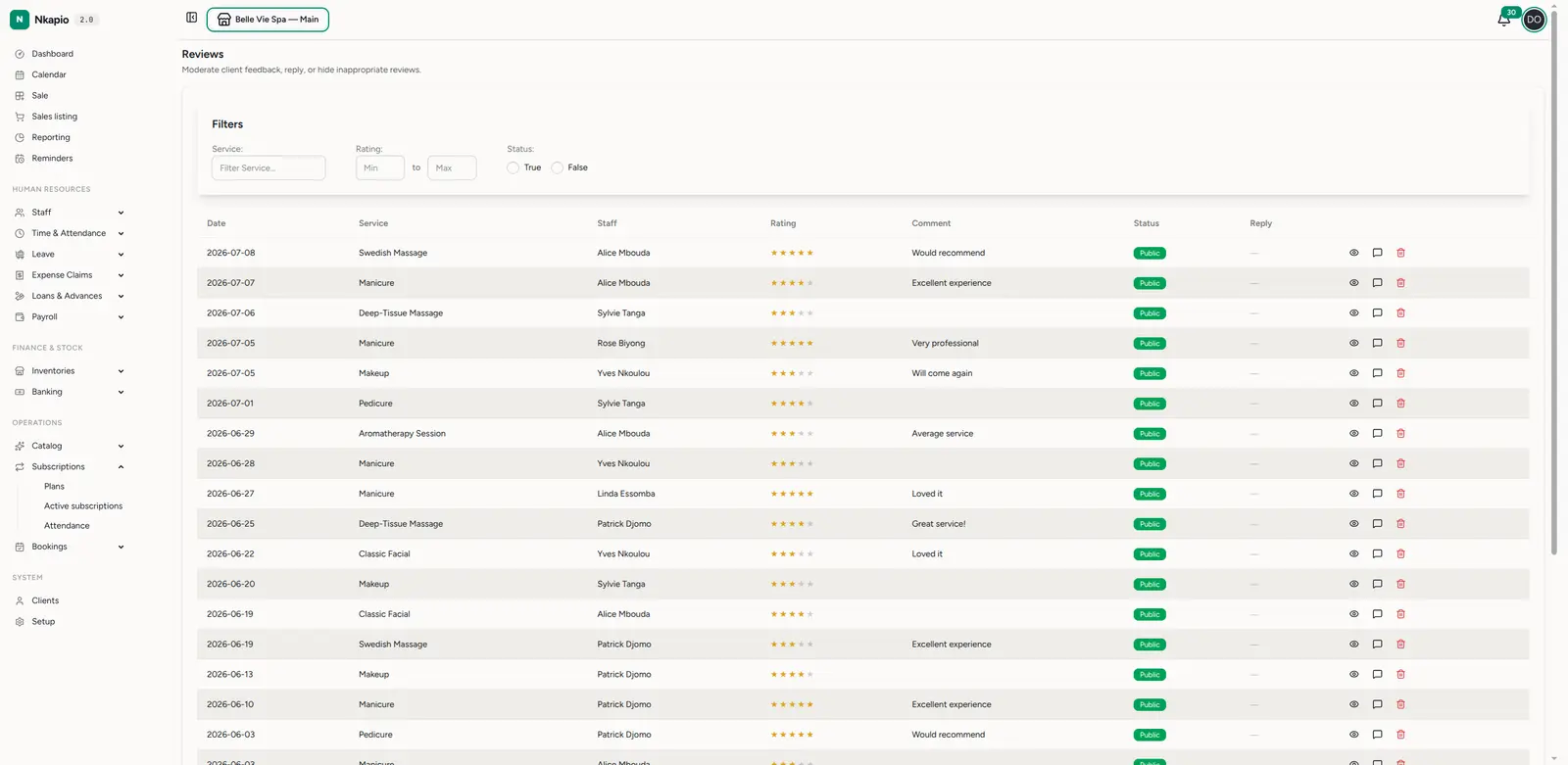
The status badge has three states — it's worth knowing the difference:
- Public — the client opted in and you've kept it visible. This is the only state that appears on your public service page.
- Private — the client left the review but did not tick the "show publicly" box. You can still read and reply to it; it just never goes public.
- Hidden — you hid it (see below). It stays on record but is treated as not public.
Reply to a review
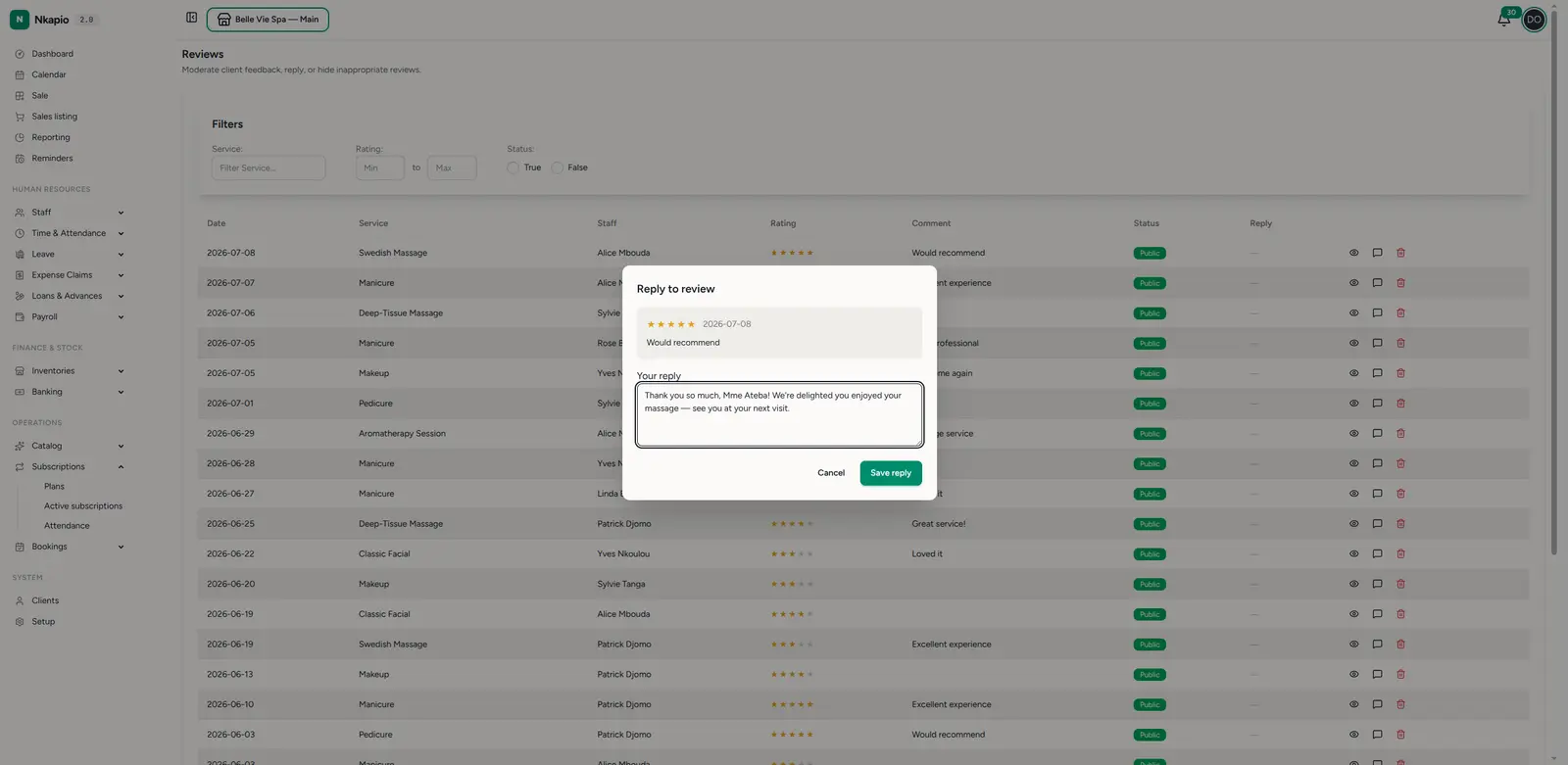
Click the reply icon on a review to open the Reply to review box. You'll see the original rating and comment, with a field for your reply. Write a short, warm response — thank the client, address any concern — and click Save reply. There's one reply per review, and it's attached to the review so the client sees it on their booking status page and future readers see that you engaged.
Hide or remove a review
- Hide an inappropriate or off-topic review with the visibility (eye) action — it stays on record but is no longer shown publicly. Toggle the eye again to show it.
- Delete removes a review entirely and can't be undone.
Use these sparingly: a genuine, replied-to negative review often builds more trust than a wall of five-star ratings.
Before you rely on it
- Reviews only appear after completion. A client can't review a booking that is still upcoming, cancelled, or in progress — mark bookings completed so the review card and follow-up email fire.
- Public rating needs consent. A review only counts toward the public storefront rating when the client opted in and you haven't hidden it. A screen full of great Private reviews won't move the number shown to new visitors.
Tips
- Handle low ratings first — filter to your lowest ratings each week and reply to those clients before anything else.
- Reply, don't just hide — a thoughtful reply to a critical review shows every future reader how you handle problems. Save hiding for genuinely abusive or off-topic content.
- Watch by staff & service — recurring low ratings on one service or staff member are a signal to act.
FAQ
- Why is a review marked Private? The client didn't tick "allow my review to appear publicly" when they submitted it. You can read and reply to it, but it won't show on your service page.
- Can I edit a client's rating or comment? No — you can only reply, hide, or delete. The client's words stay as they wrote them.
- A client says they never got the review email. It's sent about 24 hours after the booking is completed, and only if no review exists yet. Check the booking is actually marked completed and that the client has an email on file.