A quote — sometimes called an estimate — is a priced proposal you send a client before any money changes hands. It spells out exactly what you'll deliver and what it will cost, so the client can say yes with confidence and you have a clear record of what was agreed. Anyone on your team with permission to manage quotes can create one, whether you're pricing a repair, a course of treatment, a project or a basket of products.
In Nkapio you build a quote much like an invoice: pick who it's for, list the priced items, add any taxes, and set a date until which the price holds. From there you share it, keep an eye on its status, and — once the client agrees — use it as the agreed basis for the invoice you raise.
Step 1 — Open the quotes list
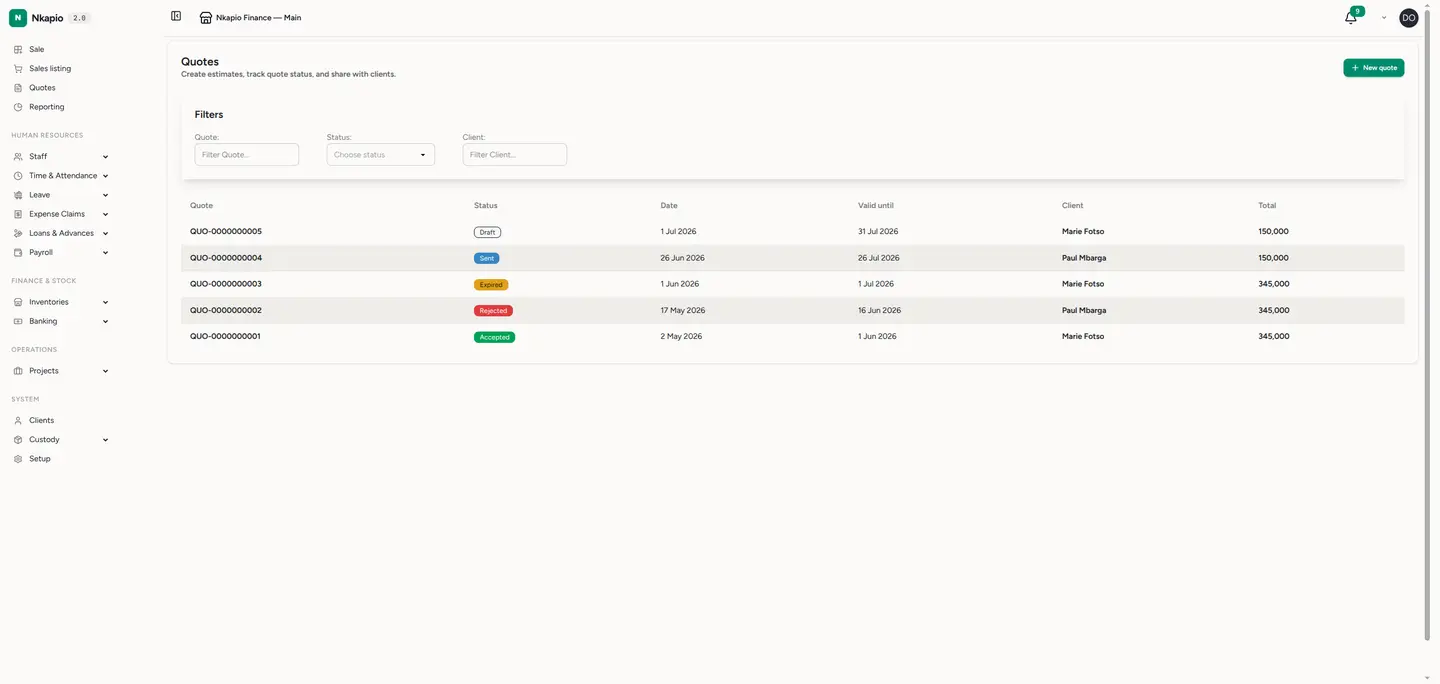
Click Quotes in the sidebar. Each row shows the quote number, its status, the quote date, the "valid until" date, the client and the total. Use the column filters to narrow by number, status or client, and click a column heading to sort. The status tells you where each quote stands: draft (still being prepared), sent (with the client), accepted, rejected or expired.
Step 2 — Read a quote
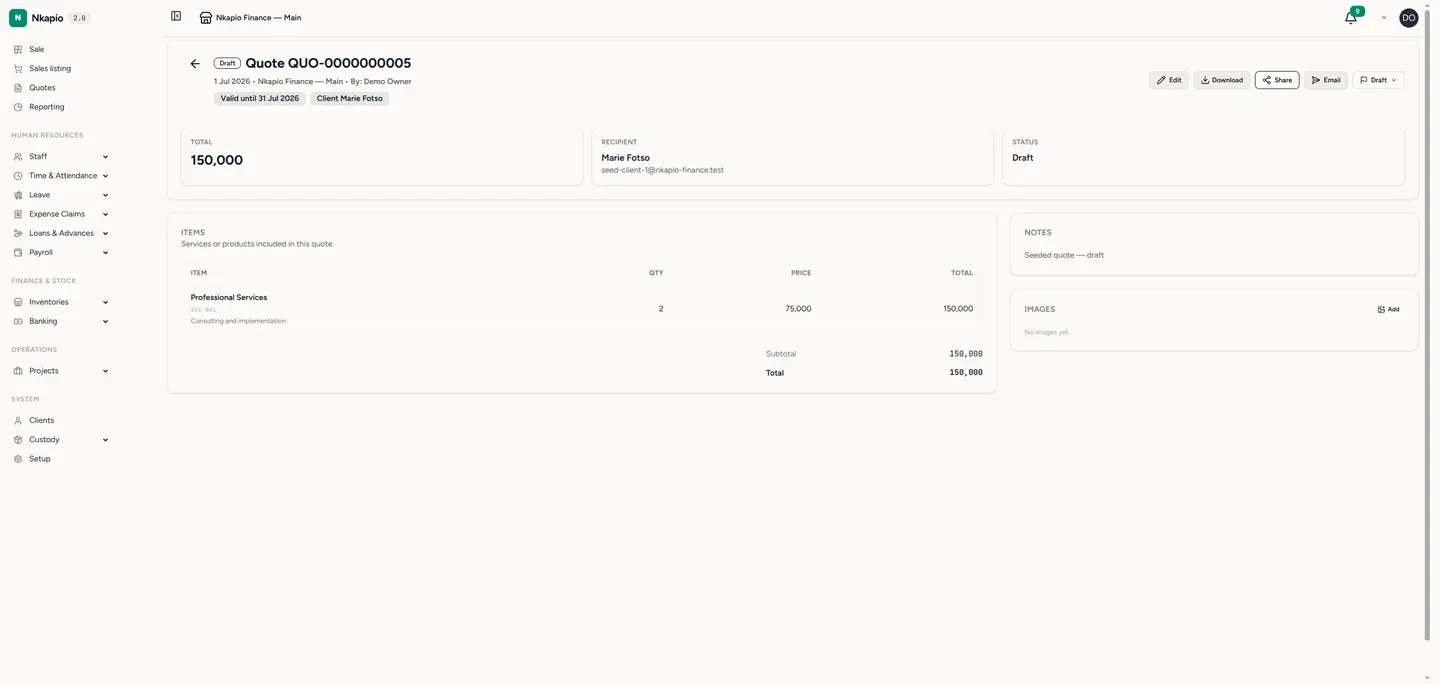
Click any row to open the quote. The header carries your company details, the quote number and status, the recipient and the "valid until" date — the same view the client sees. Below it, the line items are listed with their quantities and prices, followed by the subtotal, any TVA or IS tax, and the grand total. A side panel holds your notes, any images you've attached, and the version history, so you can see how the quote has changed over time.
Step 3 — Create a new quote
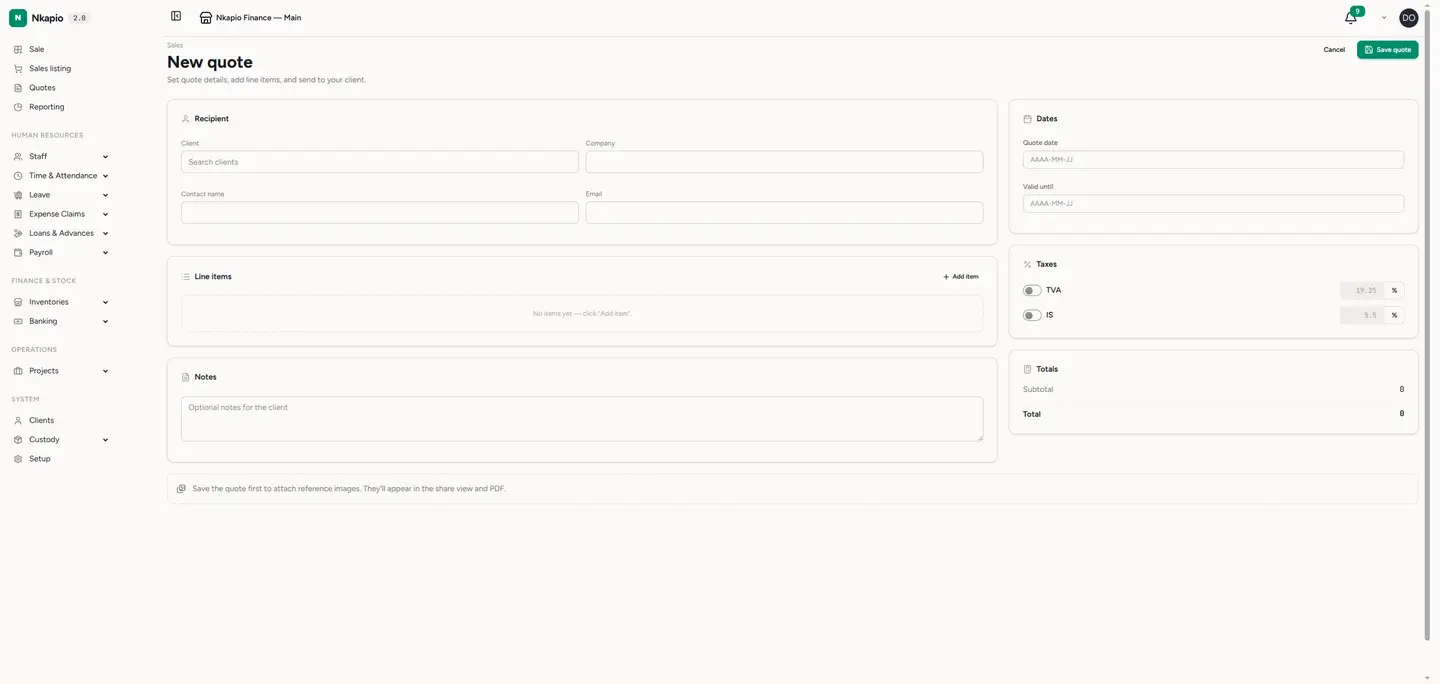
Click New quote. Choose an existing client from the search box, or type in a one-off recipient — company, contact name and email — for someone who isn't in your client list yet. Add each service or product as a line item with a name, an optional reference, a quantity, a unit price and a description; Nkapio totals each line for you as you type.
Set the quote date and a valid until date so the client knows how long the price holds. Turn on TVA or IS if the job is taxable and set the rate — the totals update automatically. Add any notes or images, then save the quote as a draft to keep working on it, or send it straight to the client.
Step 4 — Send, share and download
Open a quote to get it in front of the client in three ways:
- Email sends the client a PDF and marks the quote as sent. The quote needs a recipient email — either the linked client's address or the one you typed in.
- Share generates a secure, read-only link you can copy and send to the client. You choose how many days it stays valid, and you can revoke it at any time.
- Download produces a PDF you can print or attach yourself.
Step 5 — When the client responds
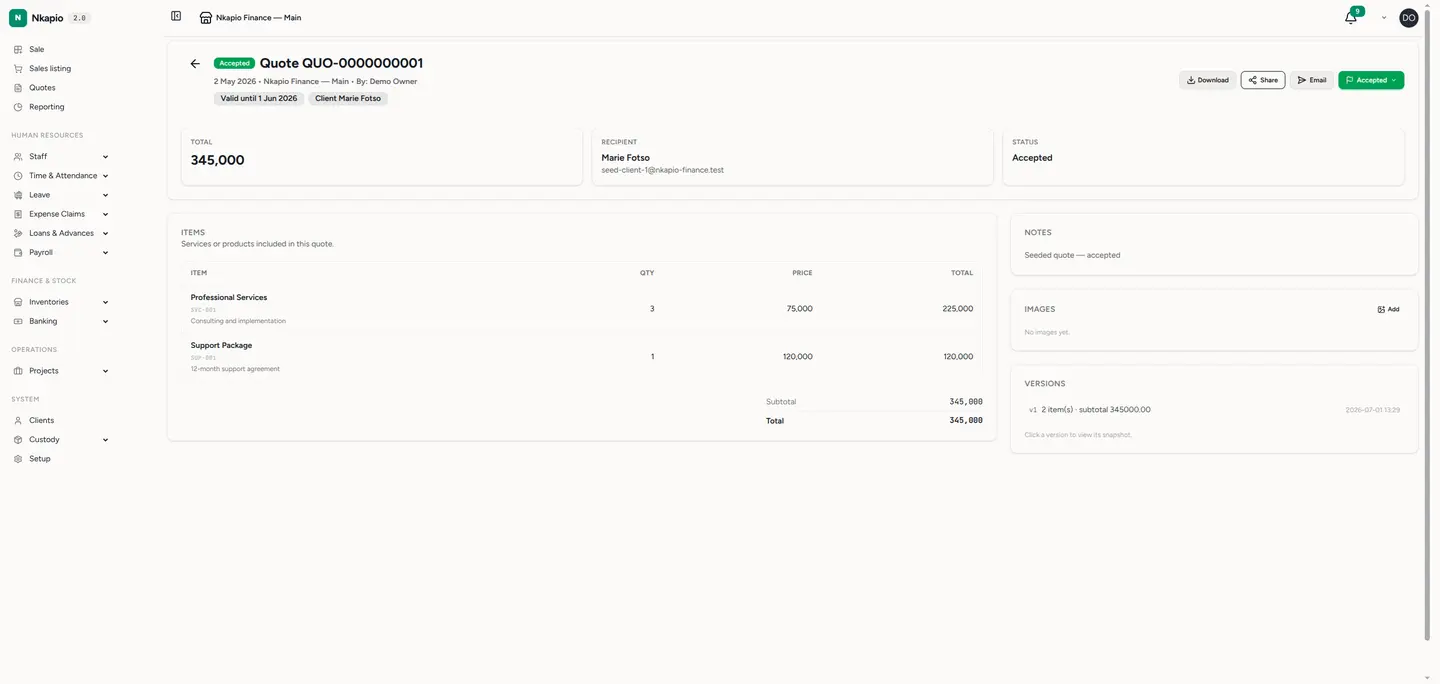
Once the client accepts, open the quote and set its status to Accepted. The agreed items, prices and taxes are now your reference for the invoice you raise — see Create & send an invoice. If the client declines, mark it Rejected; and if the "valid until" date passes before they answer, mark it Expired so everyone knows the price is no longer guaranteed.
Good to know
- Editing is only available while a quote is a draft or has been sent. Once it's accepted, rejected or expired it's locked, which keeps the agreed figures from shifting after the fact.
- Every edit is versioned. Nkapio snapshots the quote each time you save a change, so you can open the version history and compare an earlier version with the current one.
- You set the status. Nkapio doesn't move a quote between statuses on its own — you mark it sent, accepted, rejected or expired as things happen.
- Your plan may cap how many quotes you can create each month. If you reach the limit, the New quote button will let you know.
Tip: set a realistic valid until date on every quote. It signals a little urgency to the client and gives you a clean reason to revisit the price if they come back after it has lapsed.